Monthly Invoices - My Short Codes Page
The Monthly Invoice tab lists all historical monthly invoices for the account in descending order of the invoice id for the account with short codes signed up for monthly billing. The Monthly Invoice tab from the My Short Codes page is explained here.
- From the left-side navigation menu, click My Short Codes.
- Click the Monthly Invoices tab if not already on that tab.
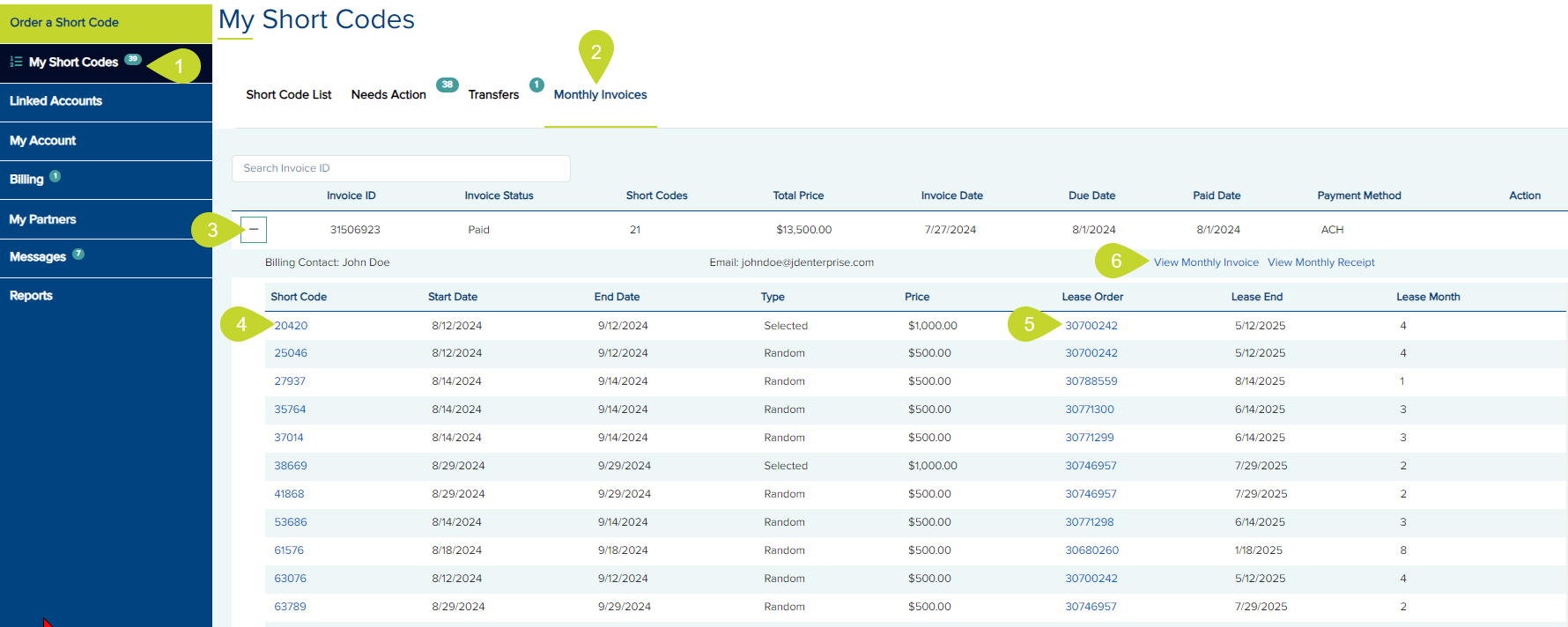
The list displays the following information:
- Invoice ID - the unique invoice ID
- Invoice Status - Paid, Payment Due, Payment Overdue, Auto-Pay, or Cancelled
- Short Codes - the total number of short codes in the order
- Total Price - the full price of all the short codes in the order
- Invoice Date - the date when the short codes were ordered
- Due Date - the payment due date
- Paid Date - the date of payment
- Payment Method - the method of payment
- Action - View & Pay Invoice button if the payment is due or overdue
- Click the + icon at the beginning of the row to expand the invoice details.
This list displays the Billing Contact, the email address, and the following information:
- Short Code - the short code
- Start Date - the start date for that month
- End Date - the end date for that month
- Type - Random or Selected
- Price - the price of the short code for that month
- Lease Order - Order ID of the short code
- Lease End - the end date of the lease
- Lease Month - the month on which you are now since ordering the short code
View Short Code History
- To view the history of a short code, click the short code link below the Short Code column.
View Lease Order
- Click the link below the Lease Order column to view the lease order.
View and Pay Invoice
- Click the View and Pay Invoice button below the Action column to view and pay an unpaid monthly invoice. The invoice is opened in a new tab.
- Click the Pay Online button, which takes you to the Payment tab of the Checkout page.
- Select a credit card/ACH or add a new payment method in the Payment Information section.
- Read and click the Terms and Conditions checkbox.
- Click Complete Order
See Also: